Changelog

Stay updated with the latest changes, improvements, and new features in Mdit.

File Watcher and Template Support

This update adds file watcher functionality to keep your folder in sync with external file changes, and introduces template support for creating notes from existing templates.

File Watcher: The app now monitors your folder files and automatically reflects changes made outside the app. When files are added, modified, or deleted in Finder (or other file managers), these changes are immediately reflected in the app’s folder view, keeping your folder synchronized.

Template Support: You can now save existing notes as templates for later use. Templates are stored as markdown files in the .mdit/templates folder, allowing you to create new notes quickly from your saved templates. This makes it easy to maintain consistent note structures and reuse common formats.

Image Drag & Drop, Block Reordering, Image Editing, and File Operations

This update introduces powerful drag-and-drop capabilities for images and blocks, image editing features, file operations in the explorer, and various bug fixes.

Image Drag & Drop from Explorer: You can now drag images from the explorer and drop them at the exact position in the editor where you want them inserted, making it easier to add images to your notes.

Block Drag & Drop: Blocks within the editor can now be reordered by dragging and dropping them to new positions, providing more flexibility in organizing your content.

Image Editing: Right-click on image files in the explorer and select “Edit Image” to convert images to WebP or AVIF formats and resize them. This utility feature helps reduce file sizes, making it especially useful for users who sync their notes with Git or want to optimize storage.

File Copy & Paste: Copy and paste files directly in the explorer, making it easier to duplicate and manage your files.

Bug Fixes: Various bugs have been fixed to improve stability and user experience.
Quick Note Shortcut, Responsive Editor Layout, and Git Sync Improvements

This update adds a quick note shortcut, fixes editor layout issues on smaller screens, and resolves focus and content loss problems during git sync.

Quick Note Shortcut: You can now open a quick note using Cmd+Option+N (Mac) or Ctrl+Alt+N (Windows/Linux) for faster note creation.

Responsive Editor Layout: Fixed an issue where the editor layout would break or display incorrectly when the screen size was reduced, ensuring a consistent editing experience across different window sizes.

Git Sync Improvements: Resolved issues where focus would reset or content would partially disappear during git sync operations, maintaining your editing state and content integrity throughout the sync process.

Tab Indentation, Equation Shortcuts, and Better Formatting

Highlights for this update include real tab (\t) indentation inside code blocks, new equation shortcuts, and refined formatting behavior alongside general polish.

Tab Indentation in Code Blocks: Pressing Tab inside code fences now inserts a tab character instead of spaces, keeping indentation consistent for projects that prefer hard tabs.

Equation Shortcuts: Added quick insert helpers—type \begin to start a block equation, and $$ for inline equations—so you can move between writing and math faster.

Formatting Refinements: Indent and outdent behave more consistently across lists and code.

Quality and UX: Various bug fixes and UI/UX touches to keep editing smoother overall.

Pin Folders, Rename Files from Editor Tabbar, and Improved Equation Block UI

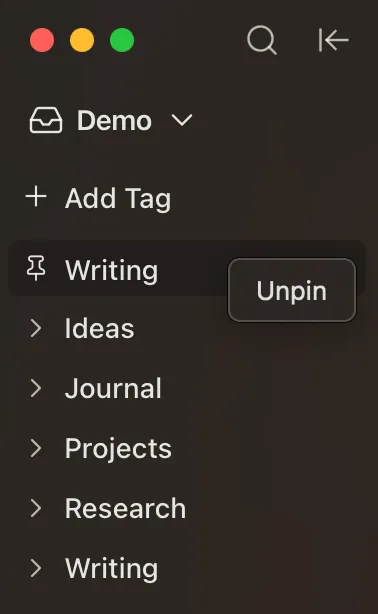
Added the ability to pin frequently visited folders to the top of the sidebar, rename markdown files directly from the editor tab title, and improved the equation block UI.

Pin Folders

Pin Folders: You can now pin frequently used folders or tags to the top of the sidebar. Pinned items are always displayed at the top for quick access, and you can unpin them at any time using the Unpin button.

Rename from Tabbar

Rename Files from Tabs: Hover over the note name in the editor tabbar to reveal an edit button. Click it to rename markdown files directly. You can quickly change file names without navigating through the file explorer or menus, making your workflow more seamless.

Improved Equation Block UI: The equation block user interface has been improved for a more intuitive and user-friendly experience.

Open and Edit Markdown Files Directly from Finder

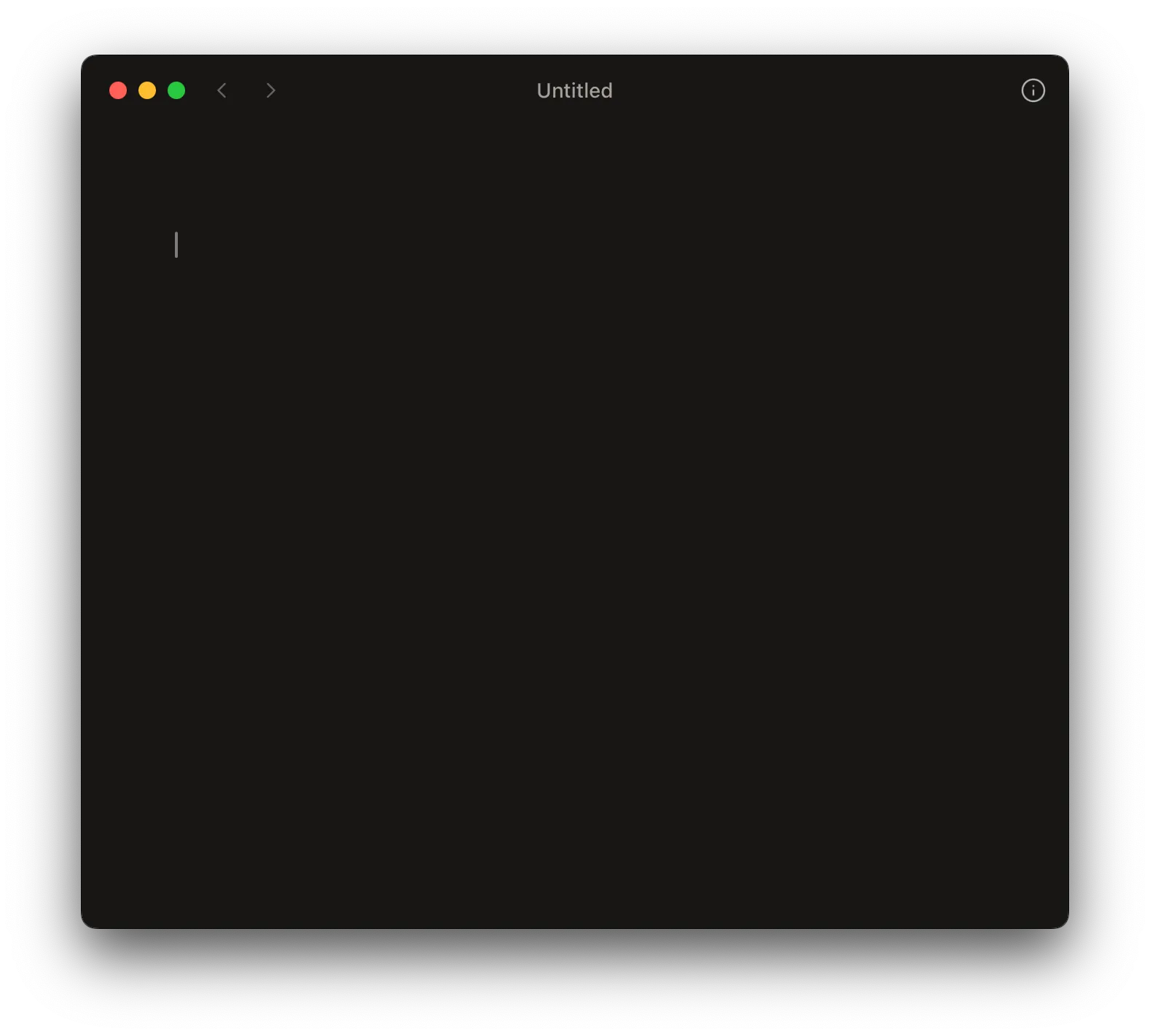
You can now open and edit markdown files directly from Finder. When opened this way, the app displays a clean, distraction-free editor interface with only the essential editing tools visible.

Clean Editor Interface

Direct File Opening: Simply double-click any markdown file in Finder to open it in mdit. The file opens instantly in a focused editor view, allowing you to start editing right away without any distractions.

Minimalist Editor UI: When opening files from Finder, the app presents a clean interface that focuses entirely on your content. The editor-only view removes all unnecessary UI elements, giving you a pure writing experience that helps you stay focused on your notes.

Semantic Search

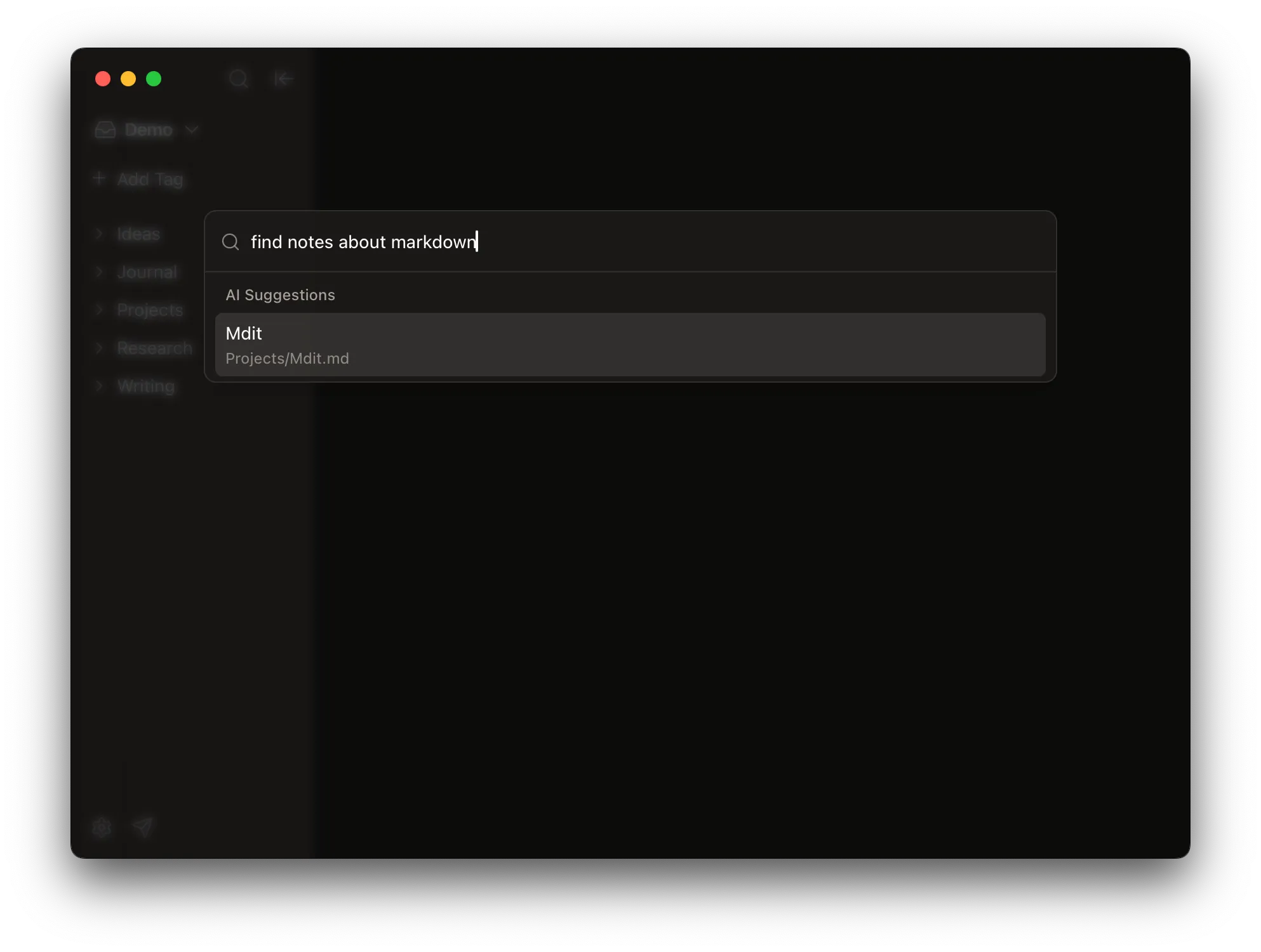
Added semantic search support, allowing you to find notes based on meaning and context rather than just keywords or exact text matches. This makes it much easier to discover the notes you’re looking for.

Semantic Search

Semantic Search: Search for notes using natural language queries that understand the meaning and context of what you’re looking for. Instead of matching exact keywords, semantic search finds notes that are conceptually related to your query, even if they don’t contain the exact words you typed.

Indexing Required: To use semantic search, you’ll need to index your workspace first. Once indexed, you can search using natural language queries like “find notes about markdown” and get relevant results based on the semantic meaning of your notes, not just keyword matches.

Auto-rename Notes from First Heading and Window Size Memory

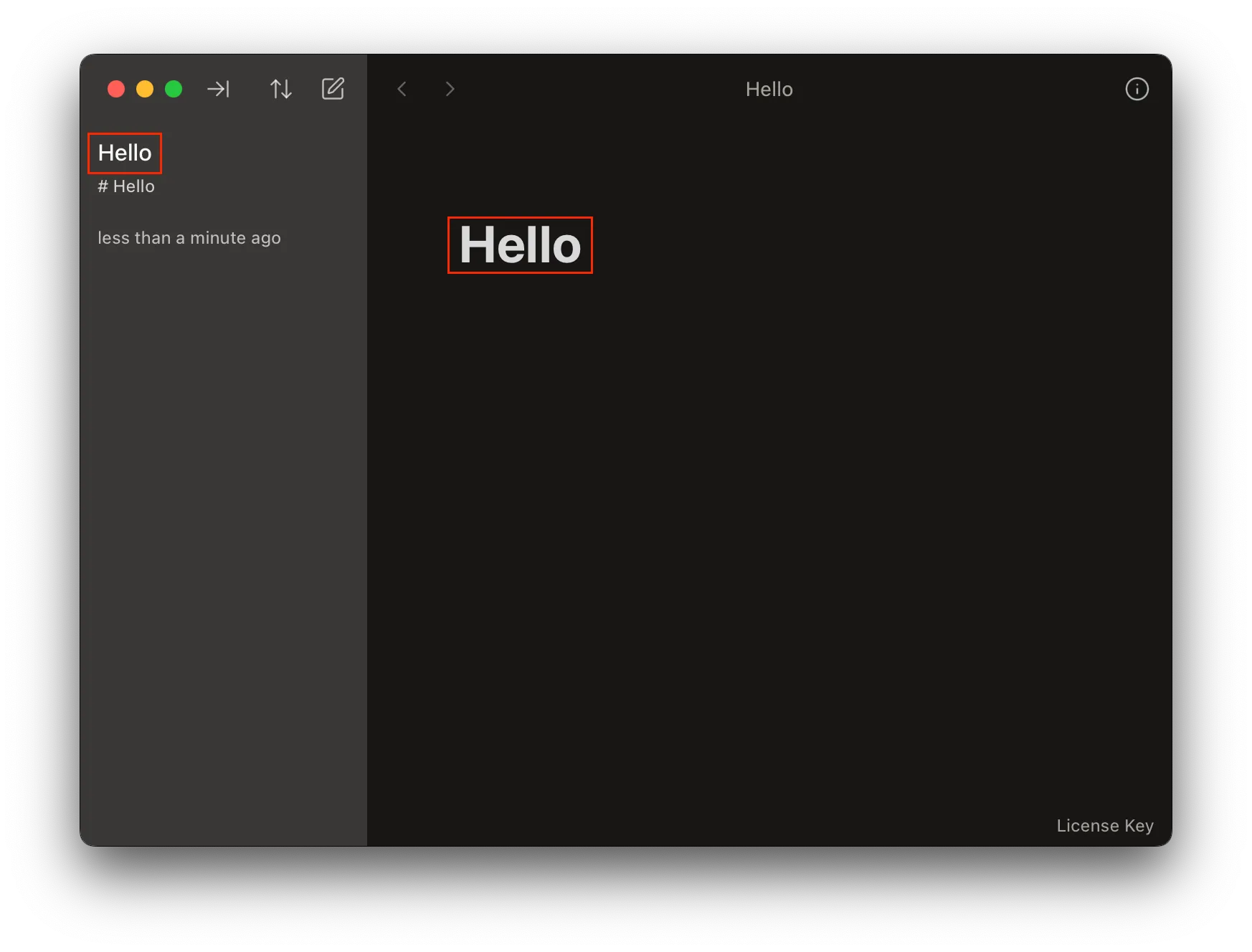
Added automatic file renaming when the first block of a note is a heading, and window size memory to restore your preferred window dimensions.

Auto-rename from Heading

Auto-rename Notes: When you write a heading as the first block of a note, the filename will automatically change to match the heading text. This helps keep your note filenames organized and consistent with their content.

Manual Override: If you manually rename a note file, the automatic renaming will be disabled for that note. Even if the heading content changes later, the filename will remain as you set it, giving you full control over the filename when needed.


Window Size Memory: The app now remembers your window size and restores it when you launch the app again, so you can pick up right where you left off with your preferred window dimensions.

Workspace Indexing and Tag-based Note Organization

Added workspace indexing with embedding models and tag-based note organization to help you discover and organize related notes more effectively.

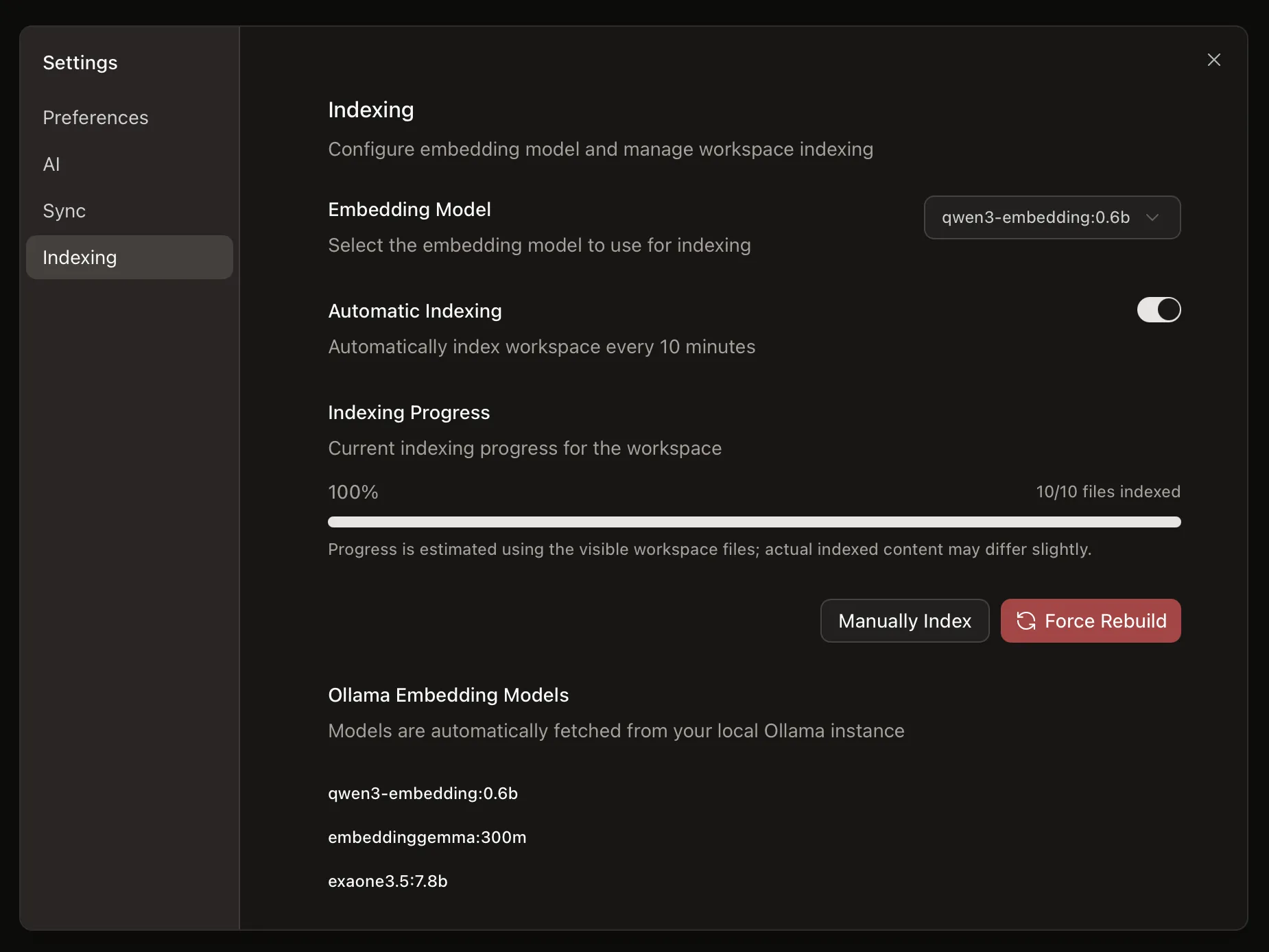
Indexing Settings

Workspace Indexing: Configure embedding models to index your workspace and make your notes searchable and discoverable. Currently supports Ollama embedding models that are automatically fetched from your local Ollama instance.

  • Embedding Model: Select from available Ollama embedding models to use for indexing your workspace
  • Automatic Indexing: Enable automatic indexing to keep your workspace indexed every 10 minutes
  • Manual Indexing: Manually trigger indexing or force a complete rebuild of the index
  • Indexing Progress: Monitor the indexing progress with a visual progress bar showing how many files have been indexed

Tag-based Note Organization

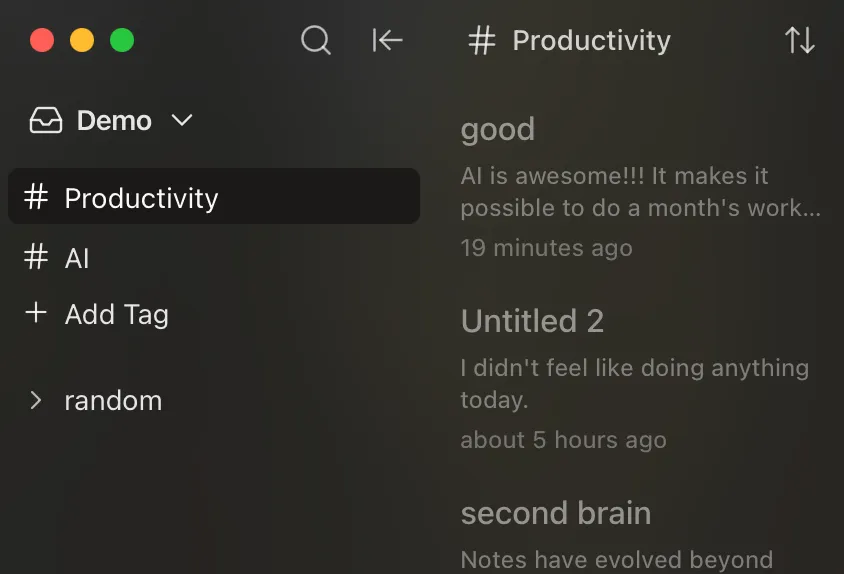
Tag-based Note Organization: After indexing your workspace, create tags to automatically group related notes together. Click on any tag in the sidebar to view all notes associated with that tag, making it easy to discover connections between your notes and organize them by topic or theme.

Collection View and Sorting

Added collection view with note previews and sorting options to help you better organize and find your notes.

Collection View

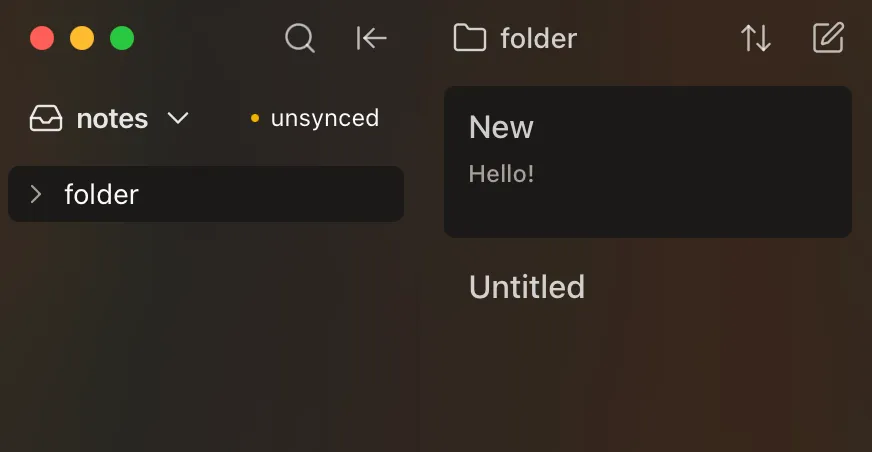
Collection View: Click on any folder in the explorer to view all notes within that folder. Notes are displayed as a list with previews, showing the title and a preview of the content, making it easy to browse and find the note you’re looking for.

Sorting Options

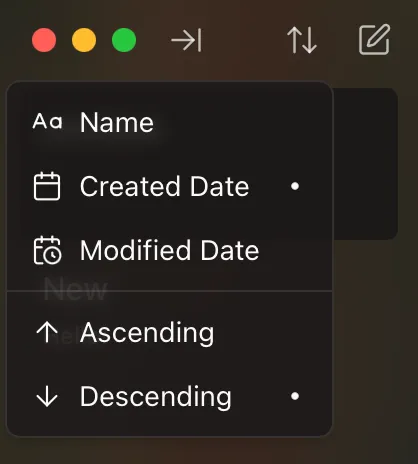
Sorting Options: Organize your notes by choosing from multiple sorting criteria:

  • Name: Sort notes alphabetically by their title
  • Created Date: Sort notes by when they were created
  • Modified Date: Sort notes by when they were last modified

You can also choose the sort order:

  • Ascending: Oldest items first (A-Z, oldest dates first)
  • Descending: Newest items first (Z-A, newest dates first)

Git Sync

Added Git sync functionality for workspaces with Git configuration. You can now sync your notes directly from the app when working in a Git-enabled folder.

Git Sync

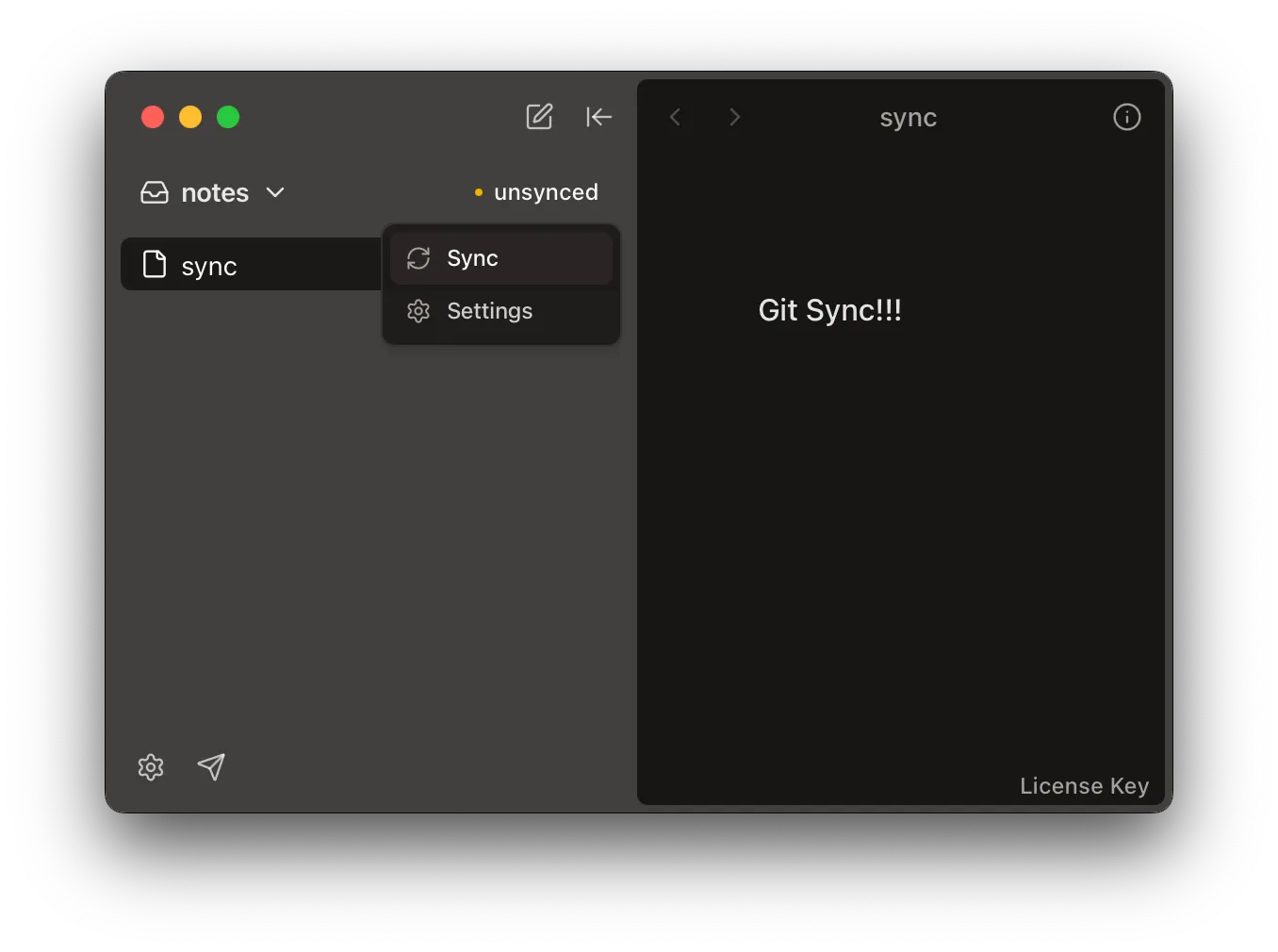
Git Sync: When you’re working in a folder with Git configuration, you’ll see sync options available in the sidebar. Use the Sync menu to manually sync your changes or access Git sync settings.

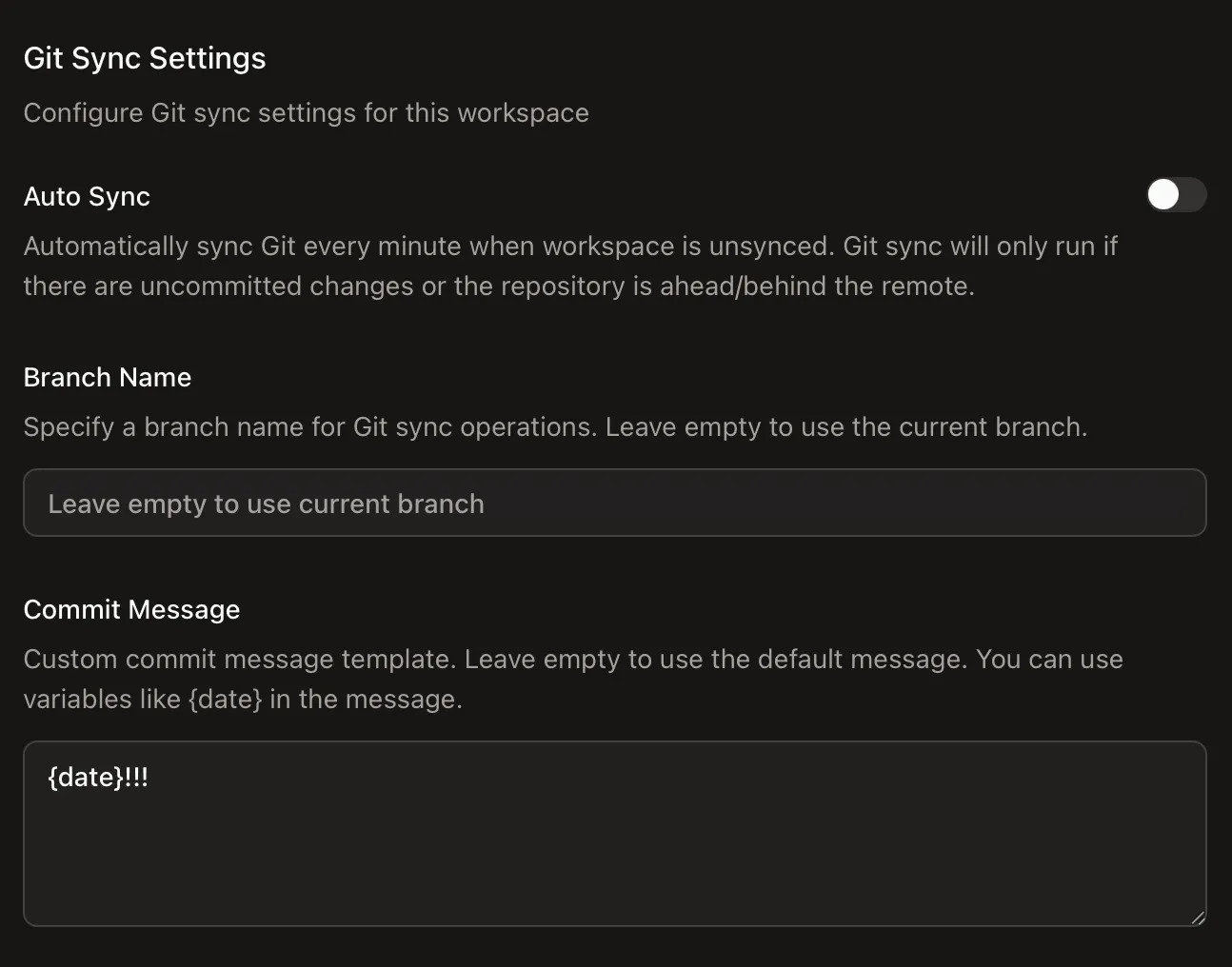
Git Sync Settings

Git Sync Settings: Configure your Git sync preferences with customizable options:

  • Auto Sync: Automatically sync Git every minute when the workspace is unsynced. Git sync will only run if there are uncommitted changes or the repository is ahead/behind the remote.
  • Branch Name: Specify a custom branch name for Git sync operations. Leave empty to use the current branch.
  • Commit Message: Customize your commit message template. You can use variables like {date} in the message template.

Image Preview and Drag & Drop

Added two new image handling features to make working with images easier and more intuitive.

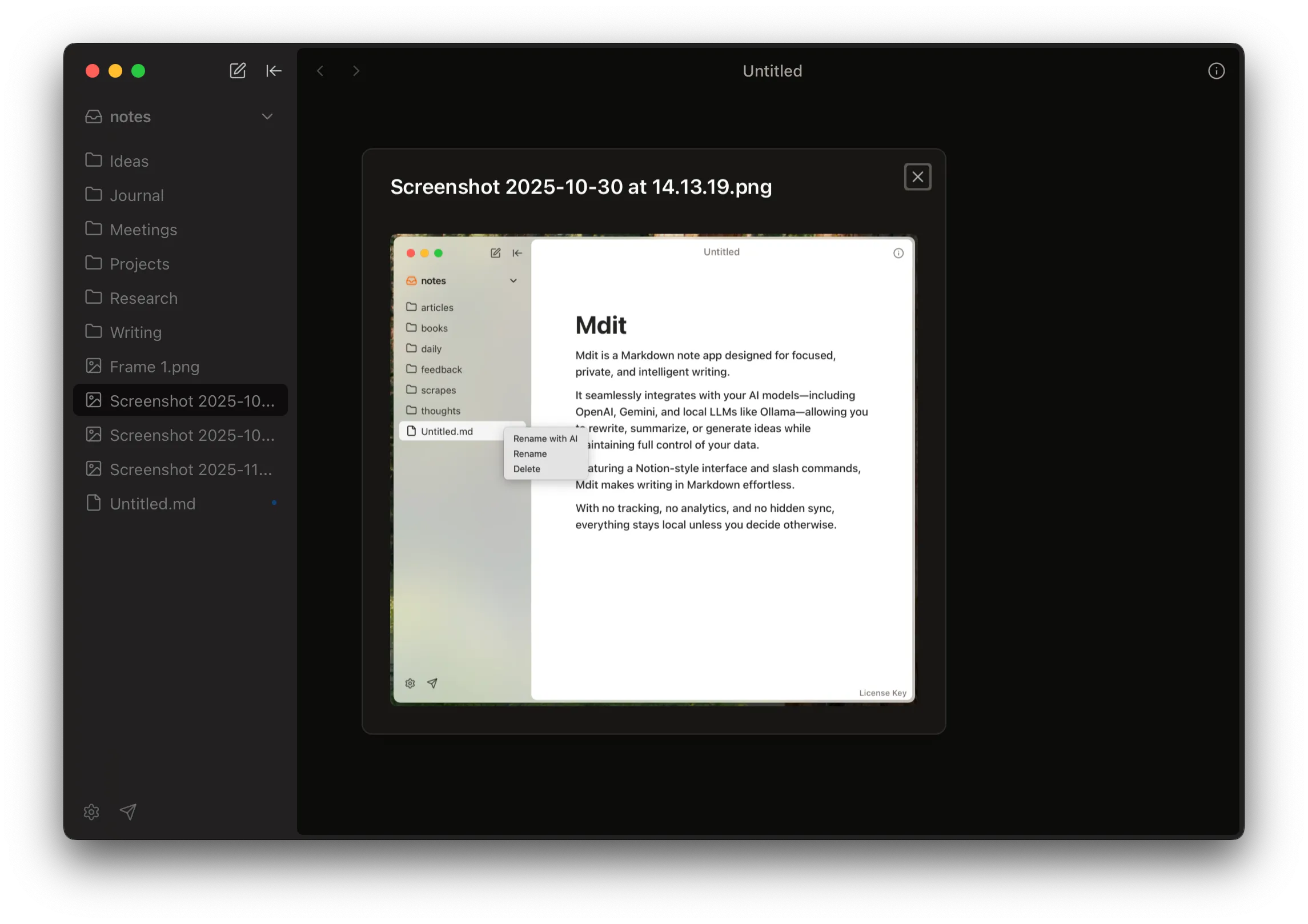
Image Preview: You can now preview image files directly in the app. Simply click on any image file in the sidebar to open it in a preview modal, making it easy to view images without leaving the app.

Image Preview

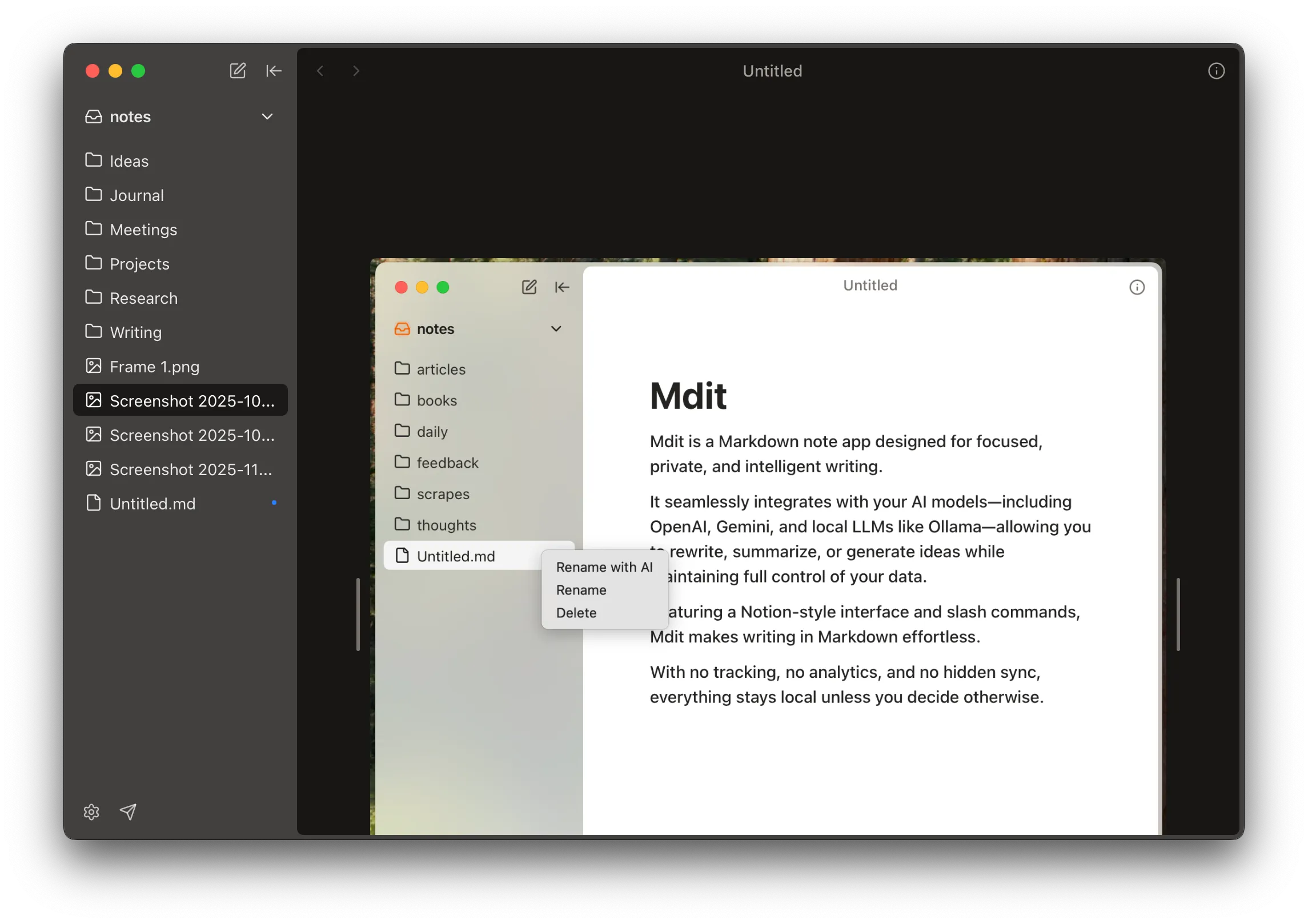
Drag & Drop: Quickly add images to your notes by dragging and dropping image files directly into the editor. This makes it effortless to insert screenshots and other images into your Markdown documents.

Drag & Drop Images

Quick Search for Notes

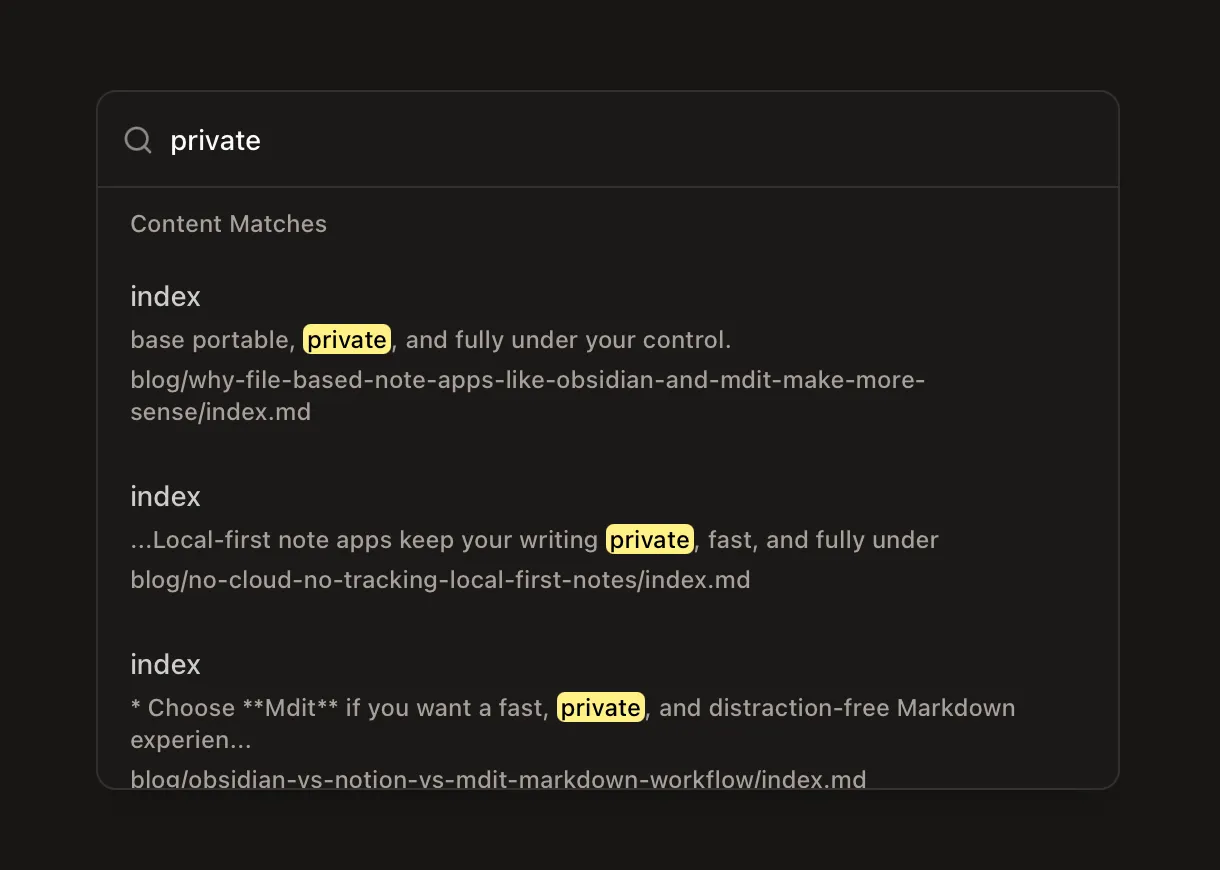
Added a new command palette feature triggered with Cmd+K that allows you to quickly find notes by searching through their titles and content. Simply open the command menu and type to filter and jump to any note instantly.

Quick Search Feature